
Razer Kiyo V2 Pro Webcam
4.6Editor score
4K at 60 frames
AI-powered auto-framing
One-click image enhancement
Detailed Razer Synapse controls
Our Razer Webcams guide compares ten leading models for streaming, meetings, and content creation, covering image quality, features, mounting, privacy, and
A dependable webcam can transform a gaming broadcast, online meeting, or recorded presentation by giving your audience a clear and stable image. Razer webcams range from practical 1440p models to advanced 4K options with intelligent framing, HDR, extensive manual controls, and integrated physical privacy features.
This guide compares ten webcams included in the Razer webcam category, covering resolution, frame rate, sensor performance, autofocus, low-light handling, field of view, microphones, software controls, mounting options, and privacy hardware. It also includes the Angetube 4K and Logitech Brio 101 as useful alternatives for buyers comparing Razer models with established competitors.
Each entry explains the strongest reasons to consider the webcam, along with its practical limitations and ideal user. The Kiyo V2 Pro earns the premium recommendation, the Kiyo V2 X balances smooth performance with convenience, and the Kiyo Pro Ultra stands out for its large sensor. As with all buying guides, prices and availability can change.
4.6Editor score

4.3Editor score

4.0Editor score
This side-by-side comparison highlights the resolution, frame rate, core imaging features, privacy design, and major advantages of each webcam. It helps distinguish dedicated 4K creator cameras from smoother 1440p options and shows where the two non-Razer alternatives fit into the comparison.


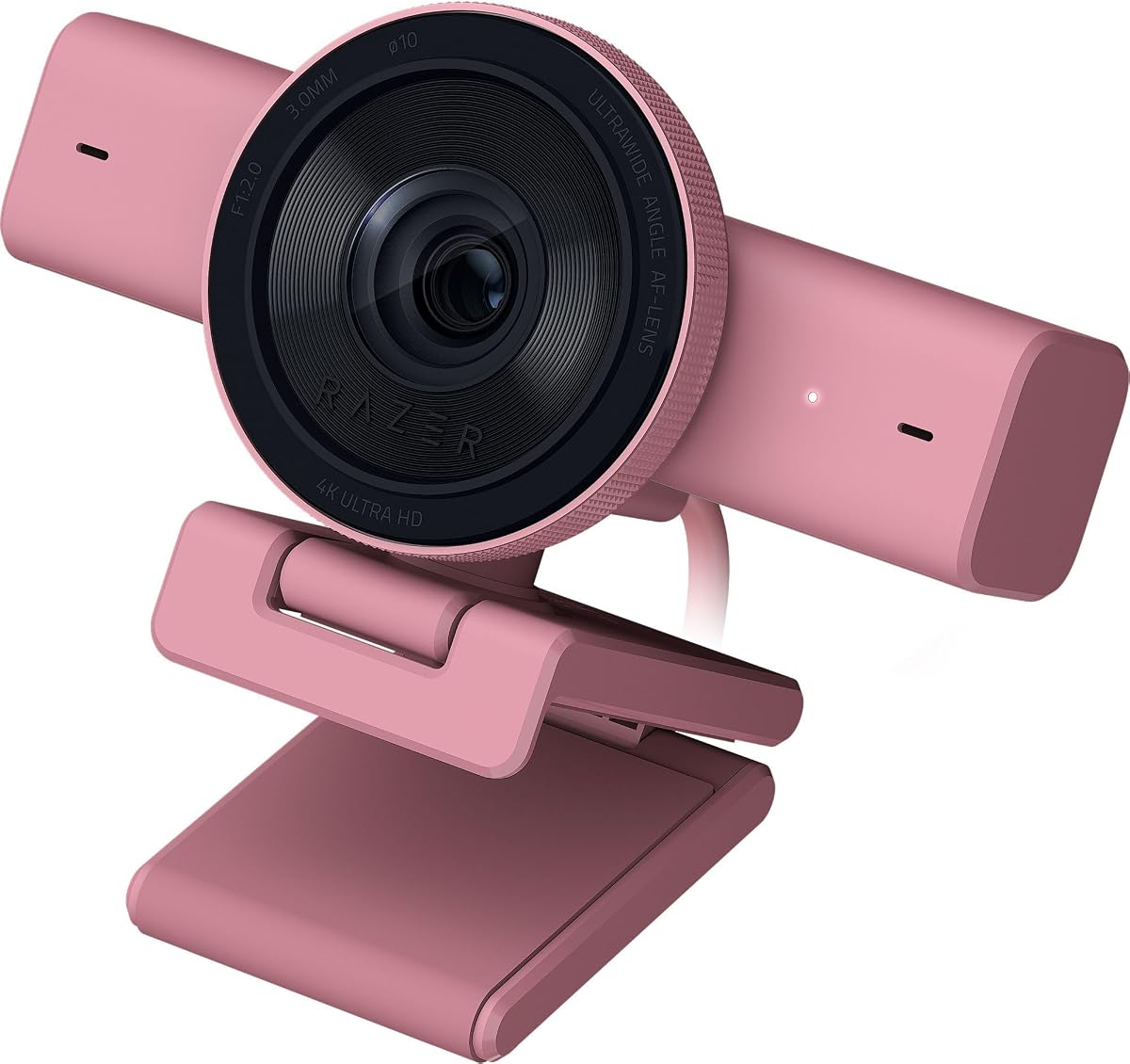


The Razer Kiyo V2 X is a particularly well-rounded webcam for streamers, remote professionals, and everyday creators. It records 1440p video at 60 frames per second, giving users a useful balance between fine detail and fluid motion. Its 4.3 rating reflects a broadly favorable reception, while the combination of autofocus, a wide-angle lens, a built-in microphone, and a physical shutter makes it convenient for both meetings and live content.
We may earn a commission when you buy through this link, at no additional cost to you.
Smooth motion is the model’s most important strength. A 60-frame 1440p feed is well suited to fast gaming, animated presentations, and active demonstrations where a 30-frame alternative may look less fluid. The fast, accurate autofocus helps keep the subject sharp, and the wide-angle lens can show a larger desk, gaming setup, or workspace. A built-in microphone adds another layer of convenience for users who do not want to begin with a separate microphone.
The Kiyo V2 X does not compete with the Kiyo V2 Pro for 4K detail, and its Razer Synapse customization is less granular than the controls offered by higher-end creator models. Nevertheless, the focus on fast autofocus, straightforward presets, and 1440p 60-frame output makes the trade-offs reasonable. It delivers the image characteristics that many users notice most in a live feed without requiring the most advanced hardware in the range.
This is the recommendation for someone who wants smooth 1440p video, a useful wide view, straightforward setup, and physical privacy in one package. It is particularly attractive for streamers whose footage includes substantial movement, although meeting users may appreciate the microphone and easy monitor mounting even more. Overall, it is the most balanced choice in this comparison because it avoids extreme specifications while covering the essential needs of most buyers.
The 1440p 60-frame format is a particularly effective match for gaming streams, live demonstrations, and presentations that contain frequent movement. It delivers smoother motion than a conventional 4K 30-frame setup while still preserving more detail than 1080p.
A twist-operated integrated shutter blocks the lens without relying on software, while the universal pivoting mount can sit on a monitor or connect to a tripod. That combination makes the camera easy to reposition and reassuring to use in shared spaces.
We may earn a commission when you buy through this link, at no additional cost to you.
The Razer Kiyo V2 Pro is the advanced option in this roundup, combining 4K resolution with 60 frames per second and an 8.3MP Sony STARVIS 2 sensor. Its 4.6 rating is the highest among the listed models, which fits its position as a premium choice for content creators, professional broadcasts, and users who want both high resolution and fluid motion.
We may earn a commission when you buy through this link, at no additional cost to you.
Its standout feature is AI-powered auto-framing. Face tracking can dynamically adjust pan, tilt, and zoom to keep the creator naturally centered, making it useful for presentations, streaming sessions, and recordings in which the subject moves around. The camera also offers one-click image enhancement that adjusts exposure, white balance, and noise reduction in dim rooms, mixed lighting, and backlit situations.
Creative control is another advantage. Razer Synapse provides access to ISO, shutter speed, exposure, gain, white balance, field of view, and other detailed settings. Ultra-High Dynamic Range technology adds brighter highlights, deeper shadows, and more vivid colors, while the 86-degree field of view gives creators room to show a desk, multiple objects, or an extended workspace without sacrificing edge clarity.
The trade-off is that this is the most technically ambitious camera in the comparison and therefore not the most modest purchase. Buyers who need only standard calls will not benefit from every control, and the advanced software functions remain tied to Razer Synapse. Even so, for a creator who wants 4K 60-frame footage, intelligent framing, detailed customization, and robust exposure tools in one device, the Kiyo V2 Pro is the strongest all-around choice here.
The 4K 60-frame output gives the Kiyo V2 Pro an advantage when both detail and motion matter. It is well suited to fast-paced games, cinematic desktop recordings, and polished content where a sharper source file provides more flexibility during editing.
AI-powered face tracking dynamically changes pan, tilt, and zoom to keep the subject centered. Instead of repeatedly repositioning a fixed camera, creators can move naturally during a stream or presentation while remaining framed within the shot.
We may earn a commission when you buy through this link, at no additional cost to you.
The Razer Kiyo V2 brings 4K recording to a more accessible tier of the Kiyo range. It uses a Sony STARVIS sensor and supports AI-powered auto-framing, one-click image enhancement, High Dynamic Range, and a wide-angle lens. Its 3.9 rating indicates a more mixed customer response than the Pro and V2 X, but the feature set is compelling for value-focused creators.
We may earn a commission when you buy through this link, at no additional cost to you.
The camera is particularly useful for people who want detailed 4K files but do not need 4K at 60 frames. At 30 frames, it is better suited to relatively steady scenes, presentations, tutorials, and slower gaming footage than to exceptionally fast action. In exchange, 1440p and 1080p recording options can be more appropriate for platforms or computers that prioritize smooth frame delivery.
Auto-framing tracks the face and adjusts the view, while the image enhancement feature automatically handles exposure, white balance, and noise reduction. HDR contributes richer color and stronger contrast, and Razer Synapse provides access to settings including ISO and shutter speed. The wide-angle lens can move between close-ups and wider compositions without the edge distortion the product description warns against.
The main reason to pass is motion smoothness at 4K. Streamers who regularly play fast games may prefer the Kiyo V2 X or V2 Pro, while buyers primarily recording speech, demonstrations, or static content can benefit from the sharper 4K output. For those priorities, the standard Kiyo V2 offers one of the most useful combinations of resolution, intelligent framing, HDR, and manual control in the guide.
A 4K image gives recorded content more visual detail and room to crop during editing. Its 30-frame limit is less noticeable in measured presentations, tutorials, and conversations than in rapid gameplay, making it a sensible fit for creators whose subjects move at a moderate pace.
One-click image enhancement adjusts exposure, white balance, and noise reduction for dim rooms, mixed illumination, and backlit setups. This gives users a convenient starting point before making more precise changes through Razer Synapse.
We may earn a commission when you buy through this link, at no additional cost to you.
The Quartz version of the Razer Kiyo V2 X provides the same core capability as the black model, including 1440p 60-frame video, fast autofocus, a wide-angle lens, a built-in microphone, and an integrated shutter. Its 4.3 rating matches the black edition, and the light-colored housing is especially relevant to creators building a coordinated, bright, or minimalist desk arrangement.
We may earn a commission when you buy through this link, at no additional cost to you.
Core image quality remains centered on smooth 1440p output and accurate focus. The wide-angle option allows the frame to expand from a close composition to a broader view of the entire desk, which can be useful for demonstrations or gaming broadcasts that need to show more than the creator’s face. Presets in Razer Synapse simplify initial setup, while detailed color and lighting adjustments offer more control for regular creators.
Like the black Kiyo V2 X, this version does not offer 4K recording, so it is less appropriate for users who prioritize maximum digital detail. Its color finish also should not be confused with a change in imaging technology. The practical decision between the editions is primarily aesthetic, while the underlying camera and feature set remain the same.
Choose the Quartz edition if you enjoy light-colored peripherals and want your webcam to blend into a brighter workspace. It supports the same smooth streaming, meeting, and recording functions as the black model, including the built-in microphone and quick physical privacy shutter. It is a strong choice for users who value design coordination and daily convenience without needing 4K.
The Quartz finish is a straightforward way to coordinate a webcam with pale accessories, clean workspaces, and minimalist streaming rooms. Since the imaging and mounting functions match the black edition, buyers can select the finish purely on appearance and setup preference.
The built-in microphone and integrated shutter reduce the number of accessories required for a basic meeting setup. Fast autofocus and smooth 1440p output also make the camera practical for routine calls, demonstrations, and live sessions.
We may earn a commission when you buy through this link, at no additional cost to you.
The Razer Kiyo V2 X White combines the same 1440p 60-frame performance as the other V2 X color options with a clean white housing. The 4.3 rating suggests broad satisfaction, and the camera remains a sensible choice for a modern office, bright studio, or coordinated white gaming setup where its finish will look deliberate rather than accidental.
We may earn a commission when you buy through this link, at no additional cost to you.
Fast and accurate autofocus helps maintain clarity when the subject shifts position, while the wide-angle lens gives users flexibility in framing. A built-in microphone supports immediate use in meetings, and Razer Synapse provides presets for a quick start or detailed color and lighting adjustments for more deliberate setups. The camera can sit on a monitor through its pivoting mount or attach to a tripod using the built-in thread.
Its primary limitation is the same as that of the other V2 X models: there is no 4K mode. Users who edit heavily or want maximum cropping latitude may prefer the Kiyo V2, while those who need especially fluid video should compare the 60-frame output with lower-frame-rate 4K models. The wide angle can also make careful positioning important if the frame should contain only the creator.
The white model is best for someone who wants a smooth, capable 1440p camera and values a coordinated appearance. It is particularly effective for video calls, casual streaming, demonstrations, and daily content creation. Buyers should choose it for finish and convenience, while remembering that it is the V2 X experience rather than the more technically advanced Kiyo V2 Pro.
The white finish blends naturally with pale desks, neutral office equipment, and minimalist studio backgrounds. It offers the same performance as the standard V2 X, so setup coordination can be the deciding factor without sacrificing the core webcam experience.
The wide-angle lens provides room for close-ups or broader workspace views, while the pivoting mount supports monitor placement and tripod attachment. This makes it easy to adapt the camera as the room, streaming layout, or recording style changes.
We may earn a commission when you buy through this link, at no additional cost to you.
The Razer Kiyo Pro Ultra takes a different approach from the newer Kiyo V2 family, emphasizing a large 1/1.2-inch Sony STARVIS 2 sensor with 2.9-micrometer pixels. Its 4.0 rating reflects a solid but less emphatic customer response, yet the hardware remains attractive for creators who prioritize light collection, natural color, and a distinctive background-blur effect.
We may earn a commission when you buy through this link, at no additional cost to you.
A custom f/1.7 aperture lens helps the large sensor gather substantial light, supporting clearer results in difficult conditions. AI-powered imaging holds focus, tracks the face, and adjusts light levels automatically. The lens can also blur the background without relying on separate software, creating a portrait-style sense of depth while keeping the subject sharp.
Its output modes include uncompressed 4K at 24 frames, 1440p at 30 frames, and 1080p at 60 frames. HDR is available at 30 frames and can improve contrast, texture, and color in dark and bright areas. Onboard memory stores the last saved configuration, while extensive customization options let users fine-tune the image. One limitation is that full advanced control is optimized for Windows; macOS supports basic plug-and-play capture without the advanced software features.
This model is most compelling for a creator who values sensor size and background separation over 4K 60-frame recording. It also suits users who want creative hardware-assisted depth and the flexibility to store a preferred setup. The Kiyo V2 Pro is the stronger choice for high-frame-rate 4K and AI framing, but the Kiyo Pro Ultra remains a compelling large-sensor alternative for detailed, controlled image making.
The 1/1.2-inch Sony STARVIS 2 sensor gathers more light and image information than conventional webcam sensors. Paired with the f/1.7 lens, that hardware is designed to preserve detail and color when the available light is less than ideal.
The lens can blur the background while keeping the subject focused, adding visual separation without the need for an external application. This is particularly useful for face-led videos, presentations, and recorded introductions.
We may earn a commission when you buy through this link, at no additional cost to you.
The Razer Kiyo V2 White is the light-finished version of the standard 4K Kiyo V2. It supports 4K at 30 frames, AI-powered auto-framing, one-click image enhancement, HDR, and a wide-angle lens. Its 3.9 rating is shared by the other standard Kiyo V2 color options, which use the same principal camera features.
We may earn a commission when you buy through this link, at no additional cost to you.
The Sony STARVIS sensor provides the foundation for the detailed 4K output, while the auto-framing system tracks the face and applies intelligent pan, tilt, and zoom. That makes the camera useful when creators move during presentations or stream from different positions around a desk. Automatic exposure, white balance, and noise reduction offer a convenient response to low-light RGB setups, dim rooms, and backlighting.
The principal compromise remains 4K at 30 frames rather than 60. That distinction matters most in fast games, although standard meetings, tutorials, talk shows, and slower demonstrations can look very polished at 30 frames. Razer Synapse gives experienced users control over ISO, shutter speed, and other settings, but the advanced controls also mean the camera benefits from a little setup time.
Choose the white version for a coordinated light workspace and 4K detail. It is a strong choice for remote collaboration and creator content where sharpness, tracking, and HDR matter more than ultra-fluid 4K motion. Users who want a complete visual package should also account for a microphone, since the listed core features emphasize imaging and mounting rather than a built-in microphone.
The 4K Sony STARVIS sensor provides sharp files for presentations, tutorials, and remote meetings. A wide-angle option also makes it possible to include more of the workspace when the subject needs to demonstrate objects or move around.
Face tracking and automatic image enhancement reduce the need for constant manual adjustment. HDR then adds contrast, depth, and richer color, helping the final image feel more dimensional in suitably lit scenes.
We may earn a commission when you buy through this link, at no additional cost to you.
The Quartz Razer Kiyo V2 delivers the same core 4K feature set as the black and white versions, wrapped in a distinctive light neutral finish. The 3.9 rating indicates a balanced reception, and the camera is most appropriate for creators who want a sharp image, intelligent tracking, and a coordinated appearance rather than the highest possible frame rate.
We may earn a commission when you buy through this link, at no additional cost to you.
Its 4K 30-frame Sony STARVIS output is well suited to detailed presentations, recorded tutorials, lifestyle content, and relatively steady gaming. AI-powered auto-framing follows the face with pan, tilt, and zoom adjustments. One-click image enhancement handles exposure, white balance, and noise reduction, while HDR contributes stronger contrast and richer hues to the result.
The wide-angle lens can shift from an intimate head-and-shoulders composition to a wider view of a streaming desk. Its universal pivoting mount supports monitor installation or a tripod connection through the built-in thread. As with other V2 models, Razer Synapse provides the most advanced settings, including ISO and shutter speed, so a creator who expects frequent manual changes will get more from the camera than one who only wants automatic operation.
The Quartz finish gives buyers another way to coordinate a workstation, particularly with warm neutral, cream, or light industrial styling. Its limitation is the same 30-frame ceiling on 4K, while the need for Razer Synapse to access advanced functions may be unnecessary for basic calls. For a detailed and adaptable 4K camera with a distinctive finish, it is an appealing alternative to the standard black model.
The Quartz housing offers a distinctive alternative to traditional black webcam designs. It is an easy choice for creators who coordinate equipment with warm, neutral, or light-colored accessories and want the webcam to appear integrated with the overall desk.
The auto-framing and wide-angle options help one camera serve close-up conversations and broader demonstrations. Combined with the pivoting mount and tripod support, the camera can easily follow changes in recording style or room layout.
We may earn a commission when you buy through this link, at no additional cost to you.
The Angetube 4K Webcam is a useful non-Razer alternative for buyers who want an integrated lighting solution. It supports resolutions from 4K at 30 frames to 1080p at 60 frames, uses PDAF autofocus, and carries a 4.4 rating. Its defining convenience is a built-in three-level ring fill light that can be adjusted with a simple touch.
We may earn a commission when you buy through this link, at no additional cost to you.
The camera also includes dual built-in microphones and a physical privacy shutter. Plug-and-play USB operation removes the need for drivers, and the supplied USB-A connection includes an adapter for USB-C ports. Compatibility is broad across Windows, macOS, and Linux, with support for popular communication services such as Zoom, Teams, Google Meet, Skype, Twitch, and FaceTime.
Its ring light is a meaningful advantage in a dim room, offering a fast way to soften facial shadows without arranging a separate light. The trade-off is that only three brightness settings are offered, so it is less flexible than a continuously adjustable external lamp. The 4K mode also remains limited to 30 frames, while the PDAF system focuses on clarity rather than Razer-style AI face tracking.
This webcam is best for a straightforward home office, online class, video call, or casual stream where a camera and basic frontal light are desired in one device. It offers broader operating system support than some of the premium Razer models and includes two microphones, making it a strong general-purpose alternative. However, the Razer Kiyo V2 Pro remains more compelling for high-frame-rate 4K, HDR, and advanced manual control.
The three-level ring fill light provides a quick way to brighten the face and reduce harsh shadows without a separate lamp. It is particularly useful in home offices and evening streaming environments where more even illumination is needed.
True plug-and-play operation, USB-C adapter support, and compatibility with Windows, macOS, and Linux make this camera convenient for mixed-device users. It works with major video platforms without requiring a separate driver installation.
We may earn a commission when you buy through this link, at no additional cost to you.
The Logitech Brio 101 is the simplest dedicated webcam in this comparison. It delivers Full HD 1080p video, includes a built-in microphone, and carries a 4.4 rating. For straightforward meetings, online classes, and basic streaming, its plug-and-play design, automatic lighting correction, and sliding privacy cover cover the most important needs without a complex setup.
We may earn a commission when you buy through this link, at no additional cost to you.
Auto-Light Balance can boost brightness by as much as 50 percent to reduce shadows, according to Logitech’s comparison with earlier-generation webcams. Users can adjust zoom, framing, and camera settings through the Logi Options+ app. The built-in USB-A cable provides a straightforward connection, and the camera is compatible with major platforms including Microsoft Teams, Zoom, and Google Meet.
The most important limitation is resolution. Its 1080p output is adequate for standard calls and casual content, but it cannot match the 1440p or 4K detail of the Razer cameras. The Brio 101 also has fewer advanced imaging features, with no listed AI tracking, HDR, or extensive manual controls comparable to the Kiyo models. Its built-in microphone and physical cover prioritize everyday usability over creator flexibility.
The Brio 101 is worth considering for a user who values simplicity, a coordinated appearance, and reliable privacy more than maximum image quality. It is also made with at least 77 percent post-consumer plastic and is compatible with Nintendo Switch 2’s GameChat mode. As an alternative in a Razer-focused guide, it serves as a straightforward 1080p option rather than a direct match for the advanced Kiyo range.
Auto-Light Balance automatically increases brightness to reduce facial shadows. It is a simple solution for users who do not want to fine-tune exposure or add another light to their desk.
The integrated sliding cover physically blocks the lens when a call is finished. That direct, visible action makes it easy for users in shared homes or offices to know when the camera is no longer capturing.
We may earn a commission when you buy through this link, at no additional cost to you.
The right Razer webcam depends on whether you prioritize smooth motion, maximum detail, intelligent framing, low-light performance, or a simple meeting setup. These factors help connect the camera specifications to the way you will actually use the device.
Choose the resolution that matches your platform, computer, and editing workflow rather than assuming the largest number is always necessary. Prioritize 60 frames for live action and 4K detail for recorded material or editing flexibility.
For dim rooms, pay attention to sensor size, aperture, and automatic enhancement together. A large sensor can provide the foundation, while software adjustments improve exposure and reduce noise.
Choose responsive autofocus for active content and AI framing for hands-free composition. Fixed or less elaborate tracking is adequate when the webcam will remain pointed at a stationary desk.
Prioritize both sensor capability and scene lighting. Automatic enhancement helps, but a front-facing light can still provide the most noticeable improvement for a face on screen.
Match the field of view to the shot. Use a wider view for demonstrations and setups, then rely on digital or AI framing to keep the presenter prominent.
Frequent creators benefit from granular controls and saved profiles. Basic meeting users can rely on automatic modes, but should confirm that their operating system supports the features they expect.
Look for a physical cover when privacy matters, and treat a built-in microphone as a convenience rather than a permanent studio solution. Separate audio equipment remains worthwhile for serious broadcasts.
Confirm that the mount fits your monitor, that the cable reaches your computer, and that your operating system supports the intended software features. These checks prevent most setup disappointments.
Begin by choosing a stable location close to eye level. Mount the webcam on a monitor, place it on a suitable surface, or attach it to a tripod using the supported thread. Aim for a background that is not distracting, keep the lens clean, and position the camera so the face is evenly illuminated. For gaming and streaming, test the view at both close and wide framing before going live to confirm that controls, hands, and relevant desk items remain visible.
Connect the webcam to the computer, then open the streaming, recording, or calling application and confirm that the webcam is selected as the capture device. Install and open Razer Synapse when using advanced features on compatible systems. Start with an automatic preset or image-enhancement mode, then adjust focus, exposure, white balance, color, and field of view gradually. Avoid making several large adjustments at once, because small changes make it easier to identify the setting that improves the image.
For ongoing care, gently wipe the lens with a soft, lint-free cloth and avoid pressing on the lens or privacy mechanism. Keep the camera away from direct heat, moisture, and dusty areas. When the webcam is not in use, close the integrated shutter to prevent accidental capture. Review software updates periodically, save preferred configurations where supported, and conduct a short test recording before meetings or broadcasts because lighting and room conditions can change.
The Razer Kiyo V2 Pro is the strongest option for fast gaming because it combines 4K resolution with 60 frames per second and AI-powered auto-framing. The Kiyo V2 X is a more modest alternative that still offers smooth 1440p 60-frame capture. Whichever model is chosen, adequate room lighting and a stable mount remain important for clear motion.
The Kiyo V2 Pro is worth considering when you need 4K detail, 60-frame video, HDR, AI face tracking, and extensive manual controls. The Kiyo V2 X already provides smooth 1440p capture, autofocus, a wide-angle lens, a microphone, and a physical shutter. Choose the Pro for advanced production work, or the V2 X when a simpler 1440p setup is sufficient.
Basic plug-and-play capture can be used for standard calling and streaming, but Razer Synapse unlocks the more advanced experience. It provides automatic framing, image enhancement, presets, and detailed controls such as ISO, shutter speed, exposure, white balance, gain, and field of view. Compatibility varies by model and operating system, so check the listed requirements before relying on advanced features.
Both support 4K capture, AI-powered auto-framing, image enhancement, HDR, and a wide-angle lens. The Kiyo V2 records 4K at 30 frames per second, while the Kiyo V2 Pro records 4K at 60 frames and uses an 8.3MP Sony STARVIS 2 sensor. The Pro also offers a wider range of manual customization, making it better suited to demanding creators.
Razer webcams include automatic exposure, white-balance, and noise-reduction tools that can improve a dim image. The Kiyo Pro Ultra’s large sensor and f/1.7 lens are particularly designed to collect more light. Even so, adding a front-facing light or brightening the room will usually produce a clearer, more natural result than relying on image processing alone.
Yes. The Kiyo V2 X and standard Kiyo V2 include universal pivoting mounts with a built-in tripod thread. The Kiyo V2 Pro also supports quarter-inch tripod mounting, and the Kiyo Pro Ultra has a built-in microphone and shutter with mounting support. A suitable tripod adapter may be needed if its included thread differs from the tripod’s standard.
A 4K webcam can look excellent in meetings, but resolution alone does not determine image quality. Framing, autofocus, lighting, software, and the platform’s own processing also influence the final result. For basic calls, the 1080p Logitech Brio 101 may be sufficient, while a 4K Razer model offers more detail for close framing, recording, and future editing flexibility.
A physical shutter is a direct and visible way to block the lens, reducing the chance of accidental capture during a meeting. Several models in this guide include one. Software indicators and application permissions can help, but a physical cover adds an independent layer of privacy that is especially useful in shared rooms and busy households.
The Razer Kiyo V2 Pro is the strongest premium choice in the guide, combining 4K 60-frame capture, an 8.3MP Sony STARVIS 2 sensor, AI auto-framing, one-click enhancement, HDR, and detailed Synapse controls. The Kiyo V2 X is the best balanced option for buyers who prioritize smooth 1440p video, accurate autofocus, a built-in microphone, and convenient physical privacy. The Kiyo Pro Ultra stands out for its large sensor, bright f/1.7 lens, background blur, and onboard configuration memory.
Before buying, decide which qualities matter most. Fast gaming favors 60-frame output, recorded content can benefit from 4K detail, and dark rooms call for strong sensor performance or a dedicated front light. Creators who move around should prioritize face tracking, while meeting users may value a microphone, easy monitor mounting, and a physical cover more than advanced exposure controls. Comparing those needs against the specific software and platform support will lead to a more satisfying result.
Finally, check current product listings, availability, and pricing at the time of purchase. Ratings and configurations can change, and the best-value option may shift when promotions or new models appear. Use the comparison to confirm resolution, frame rate, mounting, privacy, and platform compatibility, then choose the camera whose strengths align most closely with your room and recording style.